For agents to do real work for you, they need your context.
Claude Code and Codex are remarkably capable, but they can only act on what they can see. Build a system that collects your knowledge in one place agents can search, and your agent ends up with basically all the knowledge you have.
Setting this up is one of the highest-return investments you can make in how you work. Most of my tasks run close to autopilot now: agents take the first pass, I review. I’ve shared it with friends and coworkers, and it keeps proving useful. It’s the simplest version of this idea I’ve found, and I think that’s exactly why it sticks.
So here’s the full version: my setup, why I think it’s ideal, and exactly how to build it.
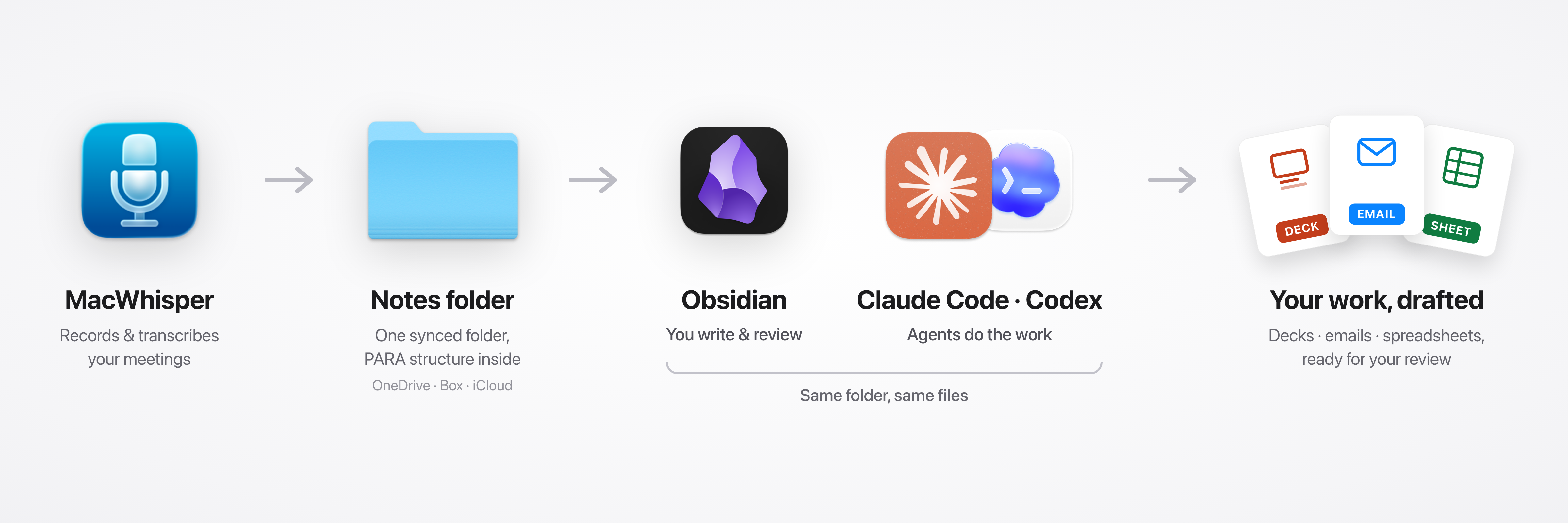
The short version: store all your notes and files in a local PARA folder structure inside an Obsidian vault that syncs through your cloud storage (OneDrive, Box, or iCloud). Use MacWhisper (Paid) to capture meeting transcripts. Run a small recurring agent job to organize your notes and draft your action items automatically.
There are two ways to use this guide:
- Read it and set things up yourself. It takes about thirty minutes.
- Hand it to your agent. Copy the agent version at the bottom into Claude Code or Codex and it will walk you through the whole setup.
What it feels like once it’s running
Here’s the loop I live in now: I get off a meeting, and a few minutes later a clean summary appears under the right project — an agent is already working on my action items. When I say “draft the deck we just talked about,” it already has the meeting, the project history, and a reference deck to work from.
That’s the dividend this setup pays. Every transcript, note, and document you capture makes the next task easier. Your context compounds.
Why this setup (and not something fancier)
A lot of people build elaborate versions of this — vector databases, embedding pipelines, a dozen plugins. Mine is plain folders and Markdown files, on purpose:
- Agents are native to files and folders. A predictable folder structure full of plain text is the easiest possible thing for an agent to search. No retrieval pipeline, no indexing — the agent just looks.
- Humans can navigate it too. When you need to find something by hand, it’s five folders.
- It works with your enterprise setup. Your work files probably already live in OneDrive or Box. This doesn’t fight IT — Obsidian and the agent are just front ends sitting on top of files you already have. (At home, iCloud works the same way.)
- There’s nothing to maintain. No sync plugins, no database to rebuild. If every app in this article disappeared tomorrow, you’d still have a folder of your files.
The system
Four pieces:
- One folder in your cloud storage. OneDrive or Box at work, iCloud at home. Kept downloaded locally, backed up by default.
- PARA inside that folder. Five subfolders, no more.
- Obsidian, opened at the root. Obsidian is your IDE for knowledge work: it reads Markdown and gives you a pleasant place to write.
- Claude Code or Codex, opened at the same root. The agent edits files, Obsidian shows the edits live, and you watch the work happen.
Then two additions that make it run itself: MacWhisper dropping meeting transcripts into your inbox, and a recurring agent job that summarizes and files everything.
How to set it up
Step 1 — Make a Notes folder. Keep it downloaded.
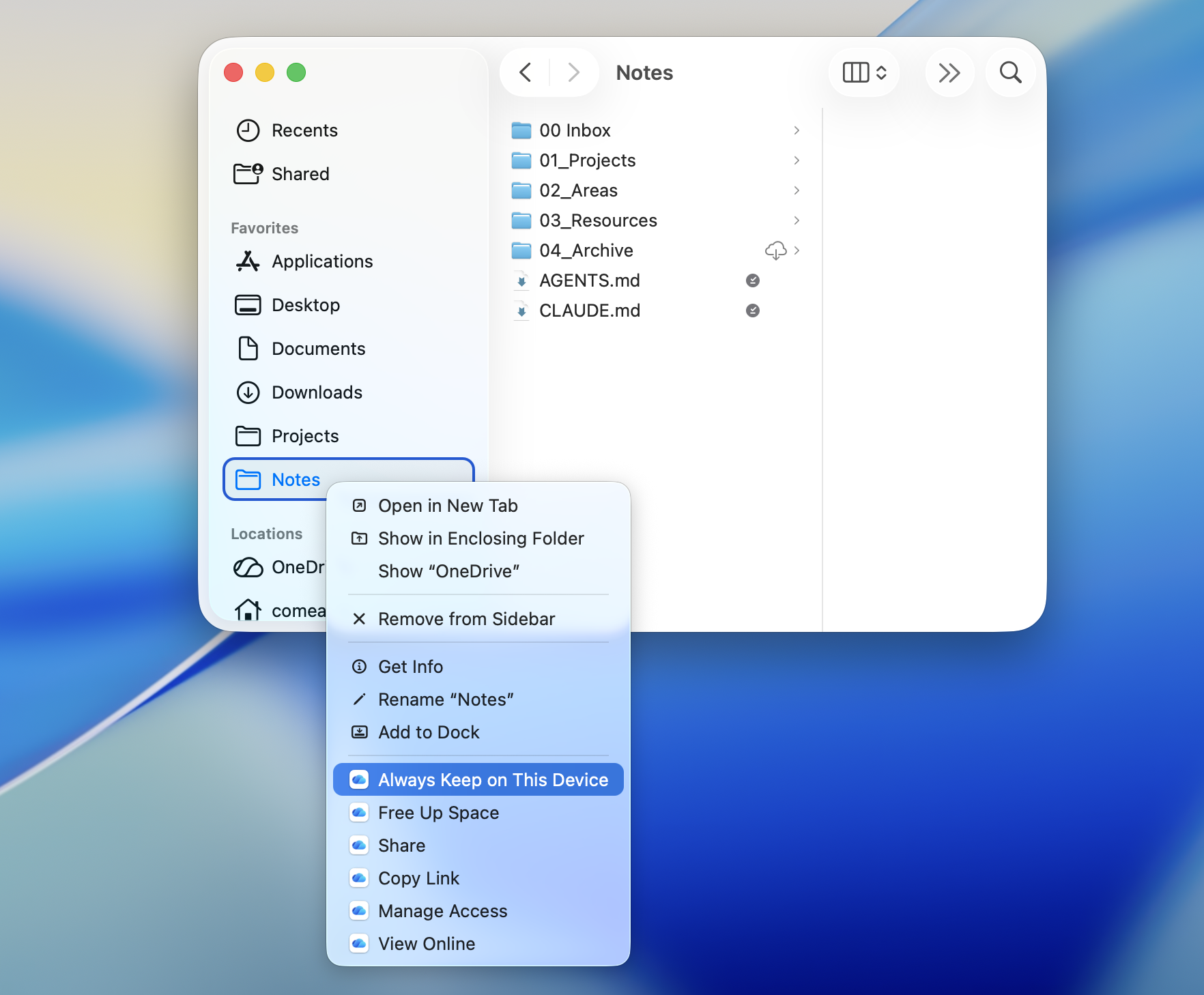
Create a folder called Notes at the root of your cloud storage. Then make sure it’s actually on your disk so your agent can access it.
- OneDrive: right-click the folder → Always Keep on This Device
- iCloud: right-click → Keep Downloaded
- Box: right-click → Make Available Offline
Step 2 — Create the PARA folders
Inside Notes, create five folders:
00 Inbox— raw capture. Everything new lands here: transcripts, files people send you, half-formed notes.01 Projects— active work with an end date. One folder per project.02 Areas— ongoing responsibilities: your team, your clients, recurring admin.03 Resources— reference material: templates, examples, decks worth copying.04 Archive— finished work. Projects move here when they wrap.
The numbers keep everything sorted in the same order everywhere — Finder, Obsidian, your agent.
Tip: you can ask Claude Code or Codex to import all your existing notes — it’ll organize them into this structure and convert them to Markdown.
Step 3 — Point Obsidian at it
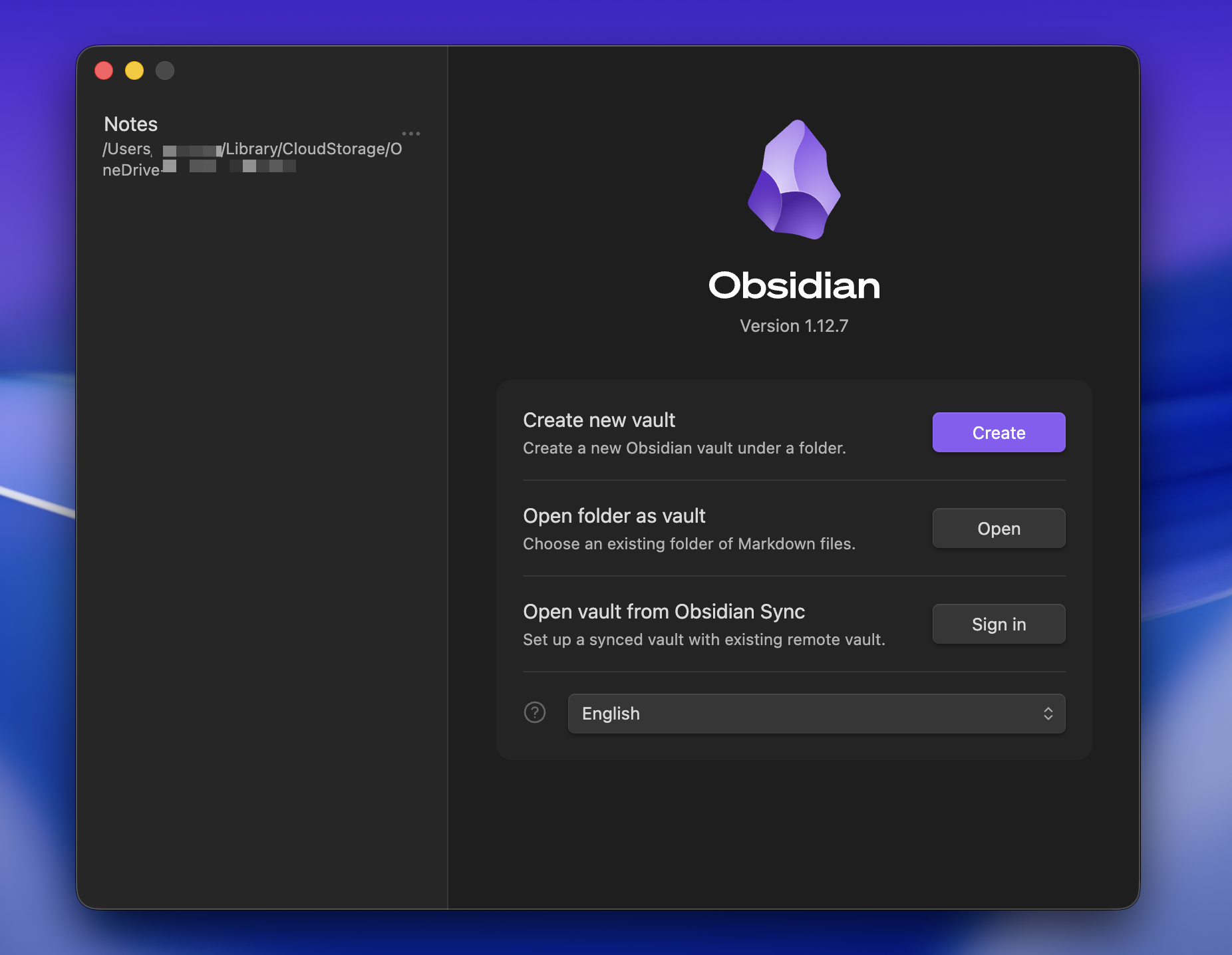
Download Obsidian (free). On first launch choose Open folder as vault and pick your Notes folder.
Step 4 — Tell Obsidian to ignore heavy files
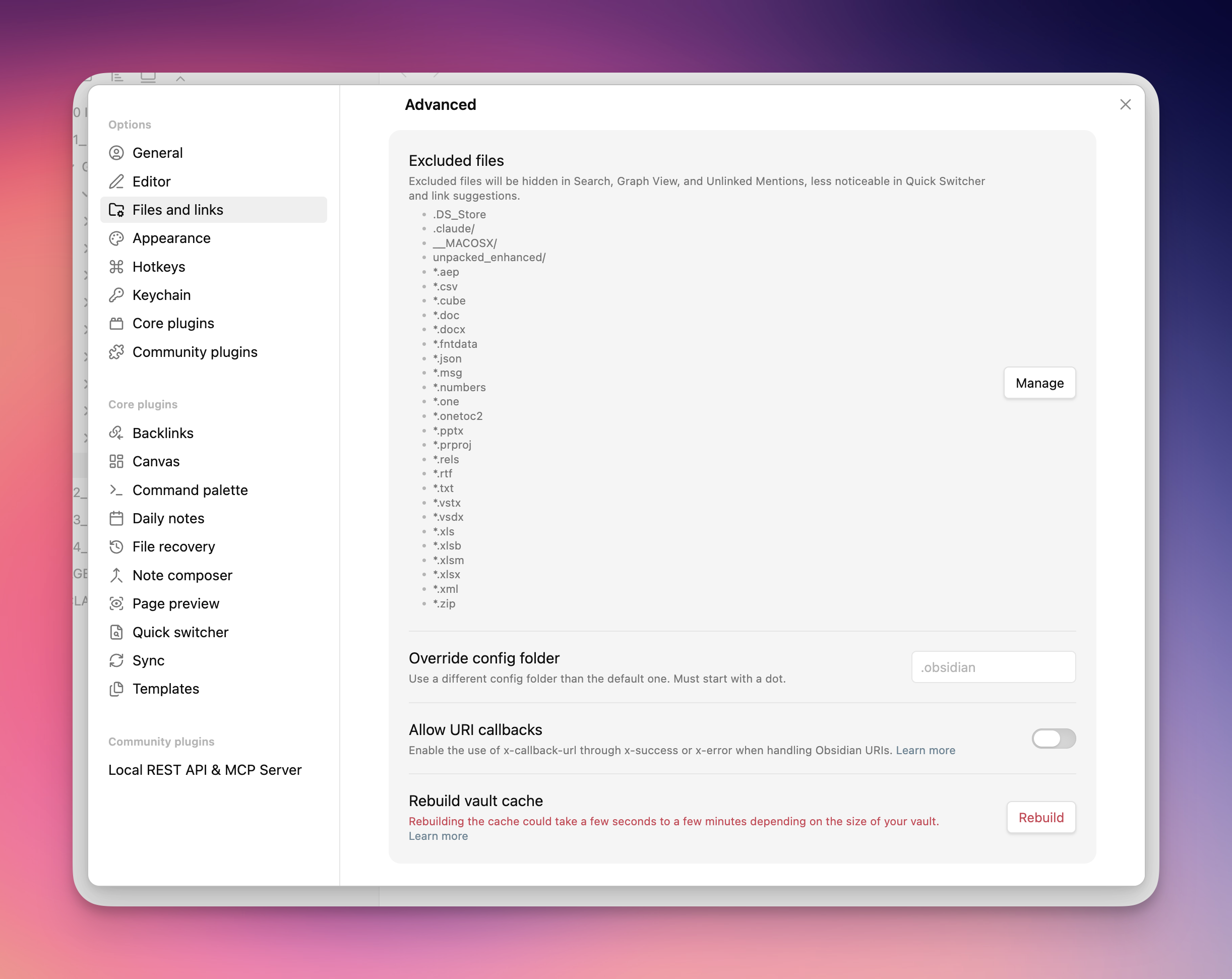
Obsidian is built for Markdown, but your vault will also hold decks, spreadsheets, and PDFs. Go to Settings → Files and links → Excluded files and add *.pptx, *.docx, *.xlsx. Or just ask your agent: “add *.pptx, *.docx, and *.xlsx to userIgnoreFilters in .obsidian/app.json.”
The files stay exactly where they are — Obsidian can’t render PowerPoint or Excel files anyway, so excluding them just keeps the app lean. (Your agent will still be able to search them.)
Step 5 — Open your agent at the same root
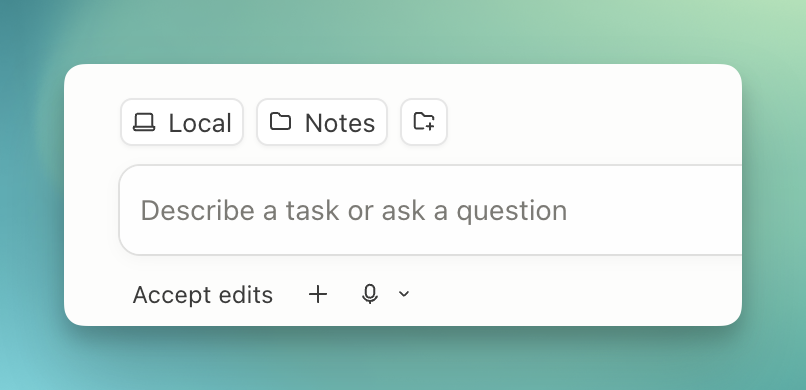
Open your agent of choice — Claude Code or Codex — at your Notes folder.
This is the move that makes everything click: the agent and Obsidian are looking at the same files. Ask the agent to summarize something and you’ll watch the note appear in Obsidian as it writes.
Step 6 — Write the rules of the road: AGENTS.md and CLAUDE.md
These files sit at the root of your vault, and your agent reads them automatically at the start of every session — Codex reads AGENTS.md, Claude Code reads CLAUDE.md. They’re how the agent learns to work the way you work.
Here’s a light starter. Copy it in, then customize — the more it reflects how you actually work, the better the agent behaves:
# This vault

This is my knowledge vault: notes, transcripts, and work documents, not a codebase.

## Layout (PARA)

- `00 Inbox` — new, unprocessed captures. Meeting transcripts and loose files land here first.
- `01 Projects` — active work with an end date. One folder per project.
- `02 Areas` — ongoing responsibilities.
- `03 Resources` — reference material, templates, reusable prompts.
- `04 Archive` — finished or inactive work.

## Rules

- New notes start in `00 Inbox` unless I say otherwise.
- Meeting summaries get filed in the matching `01 Projects` folder,
  with a link back to the raw transcript.
- Keep raw transcripts unless I explicitly ask you to delete them.
- Obsidian's "Excluded files" list is cosmetic — always search `.pptx`,
  `.docx`, `.xlsx`, `.pdf`, and other work files when they may contain
  useful context.
- Don't reorganize folders, rename files, or move large sets of files
  unless I ask.
- Write notes in Markdown. Link related notes with [[wiki links]].
- If you can't tell where something belongs, leave it in `00 Inbox` and
  list it for me.

## Key locations

- Inbox: `00 Inbox`
- Deck templates: `03 Resources/Templates`
- Reusable prompts: `03 Resources/Prompts`
- Current priorities: `01 Projects/<project>/README.md`
Step 7 — Capture your meetings
Most work context is born in meetings, so transcripts are the most valuable thing you can capture.
MacWhisper records and transcribes entirely on your Mac — audio never leaves the machine. Heads up: the meeting-recording and auto-export features below need MacWhisper Pro, the paid upgrade. If you’d rather not pay, there are free options like OpenOats — you really just want an app that records and transcribes locally and saves the files to your Inbox folder.
Set it up like this:
- Get MacWhisper (Pro).
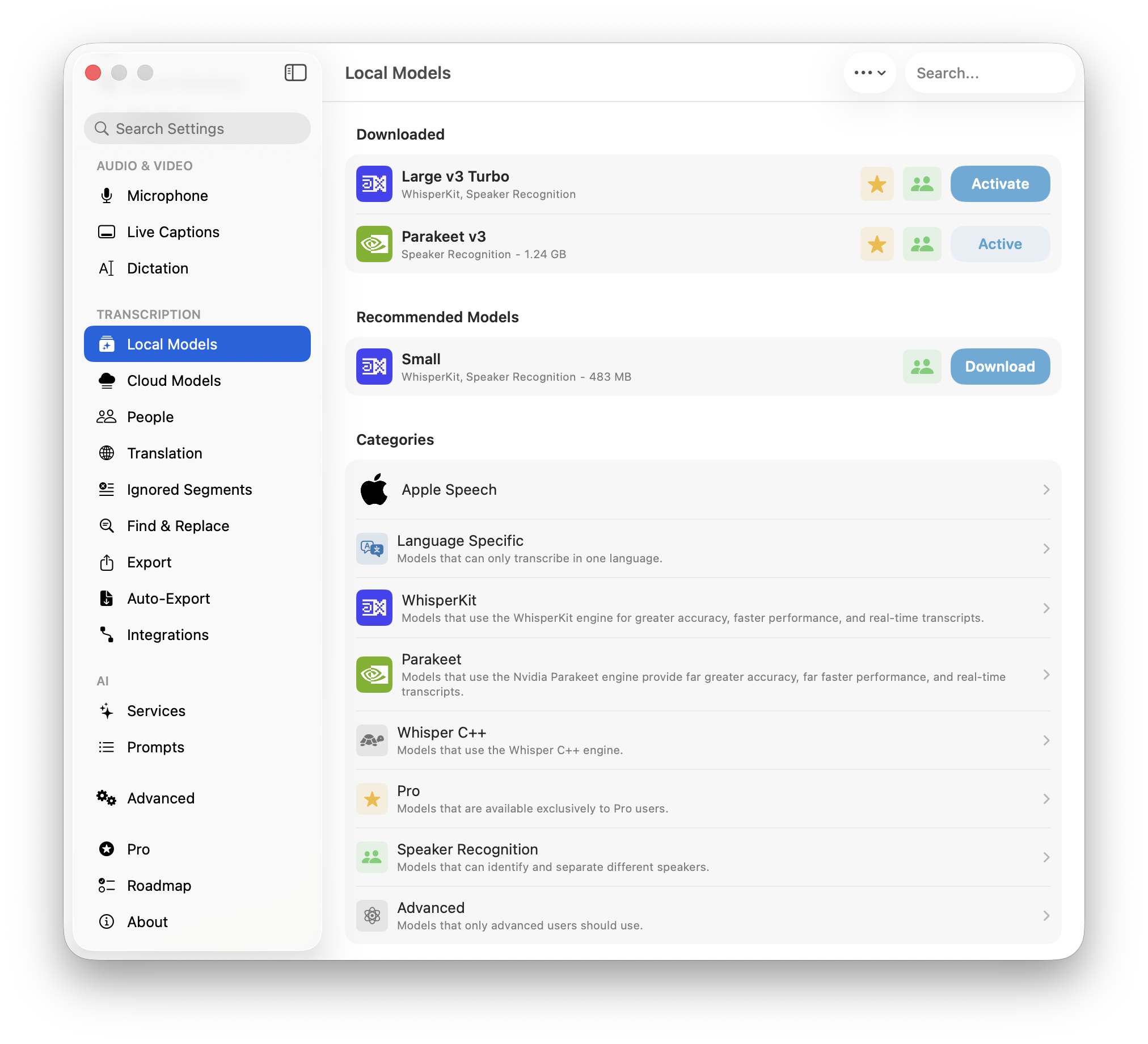
- In settings, download a local model — I have found Parakeet v3 to be the best model as of June 2026
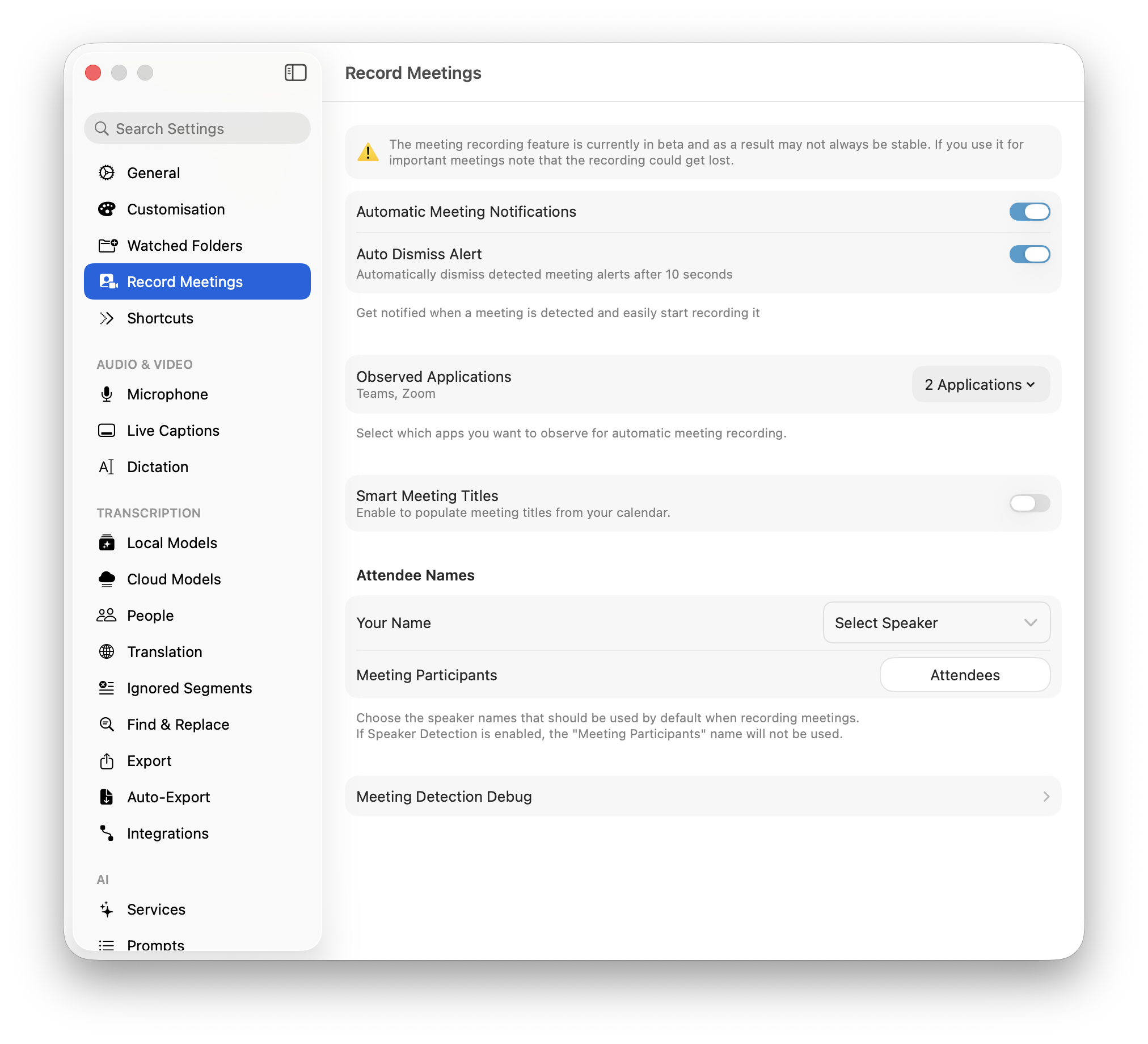
- Enable meeting recording (system audio), so it captures both your mic and the other side of your Zoom/Meet/Teams calls — it will remind you and give you the option to record when it detects a meeting has started.
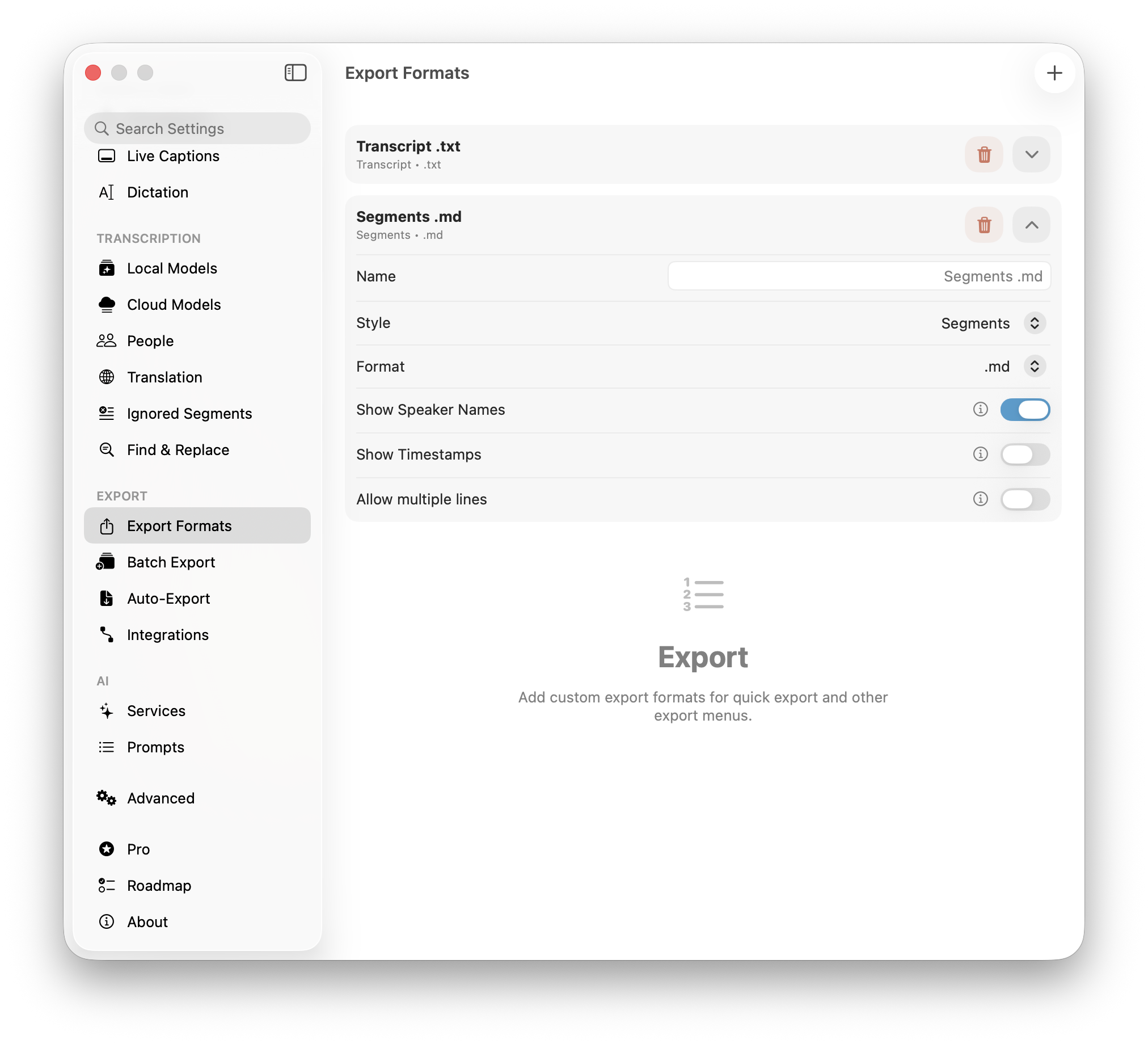
- Add an export format for Obsidian - Style: Segments, Format: .md, Show Speaker Names.
- Point transcript saving at your vault’s
00 Inbox, in Markdown.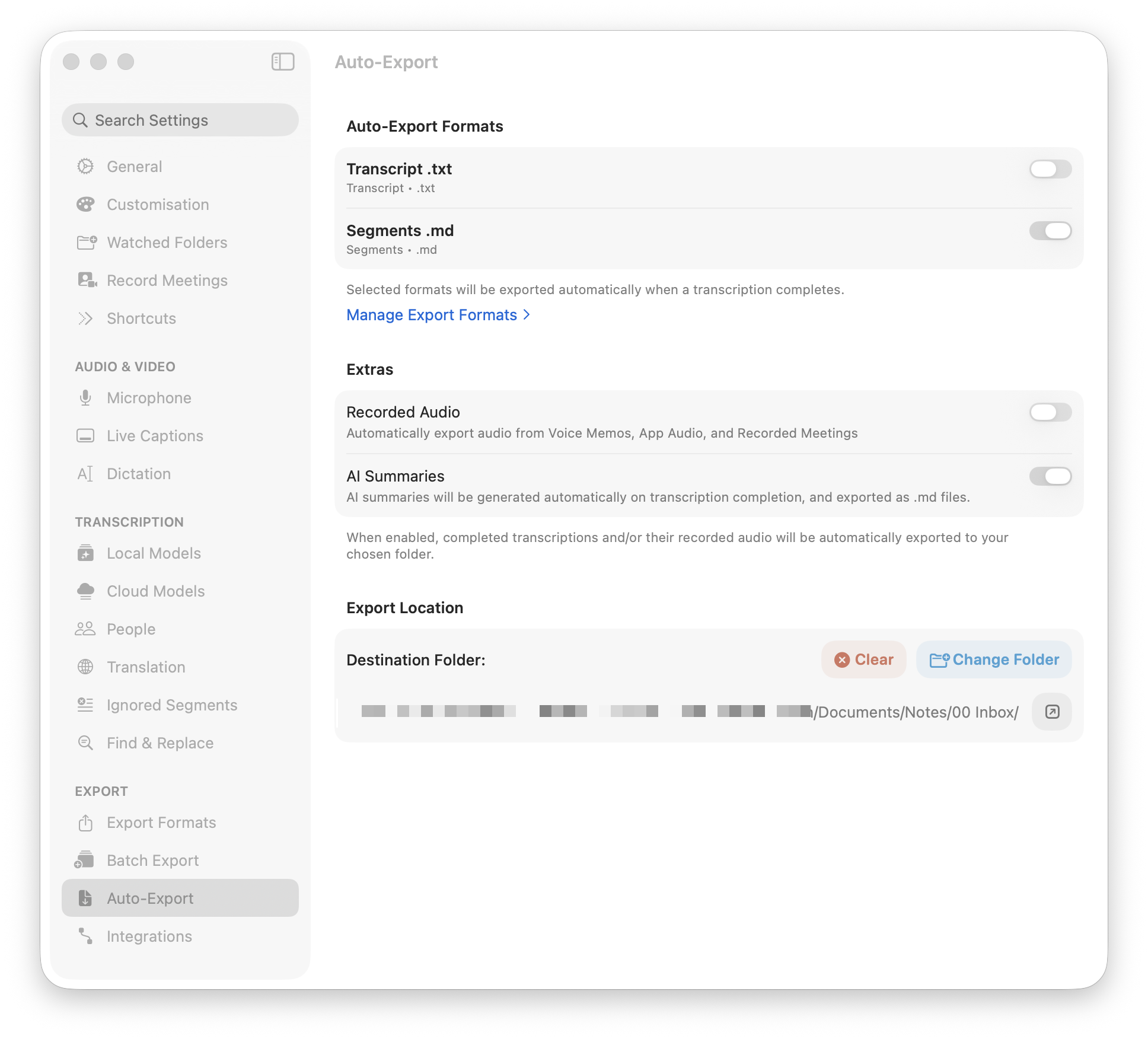
Tip: MacWhisper can generate an AI summary of each transcript with a local model. That works just fine (and saves tokens), but I let Claude Code or Codex write the summary in the next step instead — they’re better models, and they have your whole vault for context.
Now every meeting ends with the transcript already sitting in your inbox.
Always tell people when you’re recording. Most people are fine with it these days — at my company, recording every meeting is just the culture — but announcing it is still best practice, and in some places it’s the law.
Step 8 — Automate the inbox
The last piece: a recurring agent job that keeps the vault tidy without you.
In Claude Code, run /schedule (or just ask: “run this every weekday at 8am, 1pm, and 5pm”). In Codex, open the Automations tab or ask the same thing in chat.
Check `00 Inbox` for new meeting transcripts and files.

For each item:
1. Decide whether it belongs to an existing project, area, or resource.
2. Write a clean Markdown summary named `YYYY-MM-DD <topic>.md` with:
   - context
   - key decisions
   - action items, with owners and dates if available
   - open questions
   - useful links or follow-up files
3. File the summary in the right `01 Projects`, `02 Areas`, or
   `03 Resources` folder.
4. Link the summary back to the raw transcript or source file.
5. Move the processed source file next to the summary.

Rules:
- Never delete anything.
- Don't invent missing details.
- If you can't tell where something belongs, leave it in `00 Inbox` and
  add it to a short "Needs review" list for me.
- End with a brief report: what you processed, where it went, and what
  still needs my attention.
That’s the full system. Meetings transcribe themselves, summaries file themselves, and when you ask for a deck, an email, or a filled-out spreadsheet, the agent starts with everything you know.
Hand this to your agent
Prefer to delegate the setup itself? Copy everything in the block below, paste it into Claude Code or Codex, and it will walk you through the whole thing — doing what it can itself, using Computer Use if available, and giving you click-by-click instructions for the rest.
You're helping me set up an "agentic knowledge worker" system on my Mac.
The end state: one locally-synced Notes folder with a PARA structure,
Obsidian as the front end, you (the agent) working at the same root,
meeting transcripts flowing into the inbox, and a recurring job that
processes them.

Go step by step and confirm with me before moving on. Do everything you
can yourself. If you have Computer Use, app-control, or desktop
automation tools, use them for Finder, Obsidian, and MacWhisper after
telling me what you're about to do. If you don't have those tools, give
me exact click-by-click instructions and wait for my confirmation.

Before changing anything:
- Confirm the current macOS user and the folder paths you will touch.
- Do not delete or overwrite existing notes.
- If a folder, vault, or settings file already exists, inspect it first
  and preserve the user's current content.
- Ask before installing paid software or changing privacy-sensitive
  recording settings.

1. Locate my cloud storage.
   Ask which storage I want to use: OneDrive, Box, iCloud, or Dropbox.
   Then find the local folder on disk. Common locations are:
   - OneDrive: `~/Library/CloudStorage/OneDrive-*`
   - Box: `~/Library/CloudStorage/Box-Box`
   - iCloud Drive: `~/Library/Mobile Documents/com~apple~CloudDocs`
   - Dropbox: `~/Library/CloudStorage/Dropbox`

   If you cannot find the right folder confidently, ask me to choose the
   folder in Finder.

2. Create the vault folder and PARA structure.
   Create a folder named `Notes` at the root of that cloud storage
   folder. Inside `Notes`, create:
   - `00 Inbox`
   - `01 Projects`
   - `02 Areas`
   - `03 Resources`
   - `04 Archive`
   - `03 Resources/Prompts`
   - `03 Resources/Templates`

   Explain the folder purposes:
   - `00 Inbox`: raw capture, meeting transcripts, files people send me,
     half-formed notes.
   - `01 Projects`: active work with an end date, one folder per project.
   - `02 Areas`: ongoing responsibilities such as team, clients, admin.
   - `03 Resources`: reference material, templates, examples, reusable
     prompts.
   - `04 Archive`: finished work.

   If I already have notes elsewhere, offer a separate import pass later.
   Do not reorganize existing notes yet.

3. Keep the vault downloaded locally.
   Make sure `Notes` is available offline so agents can read it.
   Use Finder/Computer Use if available.
   - OneDrive: right-click `Notes` and choose **Always Keep on This
     Device**.
   - iCloud Drive: right-click `Notes` and choose **Keep Downloaded**.
   - Box: right-click `Notes` and choose **Make Available Offline**.
   - Dropbox: mark the folder **Available offline**.

   Confirm that the folder no longer shows a cloud-only download status.

4. Install or open Obsidian.
   Check whether `/Applications/Obsidian.app` exists. If not, send me to
   https://obsidian.md/download and wait for me to install it.
   Open Obsidian. On the start screen, choose **Open folder as vault**
   and click **Open**. Select the `Notes` folder you created. Do not use
   "Create new vault" and do not use Obsidian Sync for this setup.

5. Configure Obsidian to stay focused on notes.
   In Obsidian, go to **Settings → Files and links → Excluded files** and
   choose **Manage**. Add these patterns, preserving any existing entries:

   ```text
   .DS_Store
   *.pptx
   *.docx
   *.xlsx
   *.pdf
   *.zip
   ```

   Then look at what's actually in the vault (and anything I plan to
   import) and offer to add patterns for other heavy non-Markdown file
   types you find, such as `*.csv`, `*.msg`, or video project files.

   Explain that this only hides files from Obsidian surfaces such as
   Search, Graph View, Unlinked Mentions, Quick Switcher, and link
   suggestions. The files stay on disk, and agents should still search
   Office files, PDFs, spreadsheets, decks, archives, and other work
   documents when relevant.

   If you can edit files safely, you may configure this faster by
   updating `.obsidian/app.json` at the vault root and merging those
   patterns into the `userIgnoreFilters` array. Preserve valid JSON and
   preserve any existing filters. Do not use `.gitignore` for this
   native Obsidian setting: `.gitignore` only affects Git unless the user
   installs a third-party Obsidian plugin that explicitly reads it.

6. Open the agent at the same root.
   Make sure this agent session, Claude Code, or Codex is opened at the
   `Notes` folder, not at a parent folder and not inside a subfolder.
   In Codex Desktop, this means the workspace chip should show
   **Local → Notes**. In a terminal agent, `pwd` should be the absolute
   path to `Notes`.

7. Create the agent rules: `AGENTS.md` and `CLAUDE.md`.
   Briefly interview me first:
   - What is my role?
   - What are my 2-3 most active projects right now?
   - What file types do I work with most: notes, docs, decks,
     spreadsheets, PDFs, images, transcripts, or something else?
   - Are there any folders the agent should never touch without asking?

   Then write `AGENTS.md` at the vault root. Also create `CLAUDE.md`
   containing the single line `@AGENTS.md` — Claude Code treats that as
   an import, so both agents share one source of truth. Use this
   structure and customize it from my answers:

   ```markdown
   # This vault

   This is my knowledge vault: notes, transcripts, and work documents,
   not a codebase.

   ## Layout (PARA)
   - `00 Inbox` — new, unprocessed captures. Meeting transcripts and
     loose files land here first.
   - `01 Projects` — active work with an end date. One folder per
     project.
   - `02 Areas` — ongoing responsibilities.
   - `03 Resources` — reference material, templates, reusable prompts,
     examples, and source material worth reusing.
   - `04 Archive` — finished or inactive work.

   ## Rules
   - New notes start in `00 Inbox` unless I say otherwise.
   - Meeting summaries get filed in the matching `01 Projects` folder,
     with a link back to the raw transcript.
   - Keep raw transcripts unless I explicitly ask you to delete them.
   - Obsidian's "Excluded files" list is cosmetic. Always search
     `.pptx`, `.docx`, `.xlsx`, `.pdf`, `.csv`, `.txt`, and other work
     files when they may contain useful context.
   - Do not reorganize folders, rename files, or move large sets of
     files unless I ask.
   - Write notes in Markdown. Link related notes with [[wiki links]].
   - If you cannot tell where something belongs, leave it in `00 Inbox`
     and list it for me.

   ## Key locations
   - Inbox: `00 Inbox`
   - Deck templates: `03 Resources/Templates`
   - Reusable prompts: `03 Resources/Prompts`
   - Current priorities: `01 Projects/<project>/README.md`
   ```

8. Ask if I want automatic meeting transcription.
   If yes, set up MacWhisper or guide me through it. MacWhisper records
   and transcribes locally on the Mac; audio should not leave the
   machine. A free alternative to explore is OpenOats, but this setup is
   written for MacWhisper.

   Check whether `/Applications/MacWhisper.app` exists. If not, point me
   to https://goodsnooze.gumroad.com/l/macwhisper and wait for install.
   Meeting recording and auto-export may require MacWhisper Pro.

9. Configure MacWhisper local transcription.
   In MacWhisper, open **Settings → Local Models**.
   - Download and activate **Parakeet v3** if available. The guide's
     recommendation is Parakeet v3 as of June 2026.
   - If Parakeet v3 is unavailable, use a strong local model such as
     **Large v3 Turbo**.
   - Prefer a model with speaker recognition when available.

10. Configure MacWhisper meeting recording.
    In **Settings → Record Meetings**:
    - Turn on **Automatic Meeting Notifications**.
    - Turn on **Auto Dismiss Alert** if I want detected meeting alerts
      dismissed after 10 seconds.
    - Under **Observed Applications**, select the apps I actually use
      for meetings, such as Teams, Zoom, Google Meet/browser, or other
      call apps.
    - Leave **Smart Meeting Titles** off unless I want MacWhisper to use
      calendar data for titles.
    - Under **Attendee Names**, set **Your Name** / speaker if I can
      identify myself, and keep **Meeting Participants** as the fallback
      name.

    Tell me that the meeting recording feature may be beta/less stable
    and that I should not rely on it as the only copy for critical
    meetings.

11. Configure MacWhisper Markdown export.
    In **Settings → Export Formats**:
    - Keep or create an export format named **Segments .md**.
    - Set **Name** to `Segments .md`.
    - Set **Style** to `Segments`.
    - Set **Format** to `.md`.
    - Turn **Show Speaker Names** on.
    - Leave **Show Timestamps** off unless I want timestamps in every
      transcript.
    - Leave **Allow multiple lines** off unless I prefer multi-line
      segment formatting.

12. Configure MacWhisper auto-export.
    In **Settings → Auto-Export**:
    - Under **Auto-Export Formats**, turn on **Segments .md**.
    - Leave **Transcript .txt** off unless I explicitly want a second
      text copy.
    - Under **Extras**, leave **Recorded Audio** off unless I want audio
      files exported too.
    - Leave **AI Summaries** off by default. Local AI summaries can save
      tokens, but this workflow usually lets Codex or Claude summarize
      later because the agent has more project context.
    - Under **Export Location**, click **Change Folder** and choose the
      vault's `00 Inbox` folder.

    Confirm that completed transcripts will export automatically to
    `Notes/00 Inbox` as Markdown.

13. Add the recording consent reminder.
    Remind me to tell people when I'm recording. Say that many teams are
    comfortable with meeting recording now, but announcing it is best
    practice and may be legally required depending on location.

14. Save the inbox-processing prompt.
    Create `03 Resources/Prompts/Process Inbox.md` with this content:

    ```markdown
    Check `00 Inbox` for new meeting transcripts and files.

    For each item:
    1. Decide whether it belongs to an existing project, area, or
       resource.
    2. Write a clean Markdown summary named `YYYY-MM-DD <topic>.md`
       with:
       - context
       - key decisions
       - action items with owners and due dates when available
       - open questions
       - useful links or follow-up files
    3. File the summary in the right `01 Projects`, `02 Areas`, or
       `03 Resources` folder.
    4. Link the summary back to the raw transcript or source file.
    5. Move the processed source file next to the summary.

    Rules:
    - Never delete anything.
    - Don't invent missing details.
    - If you cannot tell where something belongs, leave it in `00 Inbox`
      and list it for me under "Needs review."
    - End with a brief report: what you processed, where it went, and
      what still needs my attention.
    ```

15. Offer the recurring job.
    If scheduled tasks are available, offer to run this prompt every
    weekday at 8am, 1pm, and 5pm, or at another cadence I choose. Use a
    local task because the job needs access to the local `Notes` folder.
    - Codex: create an Automation for the `Notes` project, run it in the
      local project, and test it manually once before enabling the
      schedule.
    - Claude Code Desktop: create a local scheduled task from the
      Routines screen and point it at `Notes`.
    - Claude `/loop`: use only for temporary polling inside an active
      session.
    - Claude cloud routines: use only if my notes are available to
      Claude in the cloud.

16. Test the loop end to end.
    Create a realistic fake meeting transcript in `00 Inbox`, run the
    inbox-processing prompt against it, show me where the summary landed,
    then clean up the test files after I confirm the test worked.

17. Finish with a short recap.
    Tell me:
    - the absolute path to the `Notes` vault
    - which PARA folders exist
    - whether Obsidian is pointed at the vault
    - whether `AGENTS.md` and `CLAUDE.md` were created
    - whether MacWhisper is exporting Markdown transcripts to `00 Inbox`
    - whether the recurring inbox job was scheduled
    - what I should do tomorrow morning to use the system
Setup takes thirty minutes. The dividends start the same day, and they compound — every meeting, note, and document you capture makes your agent a little more useful than it was yesterday.